School admins run Classveew from the web portal, in any modern browser on a computer.
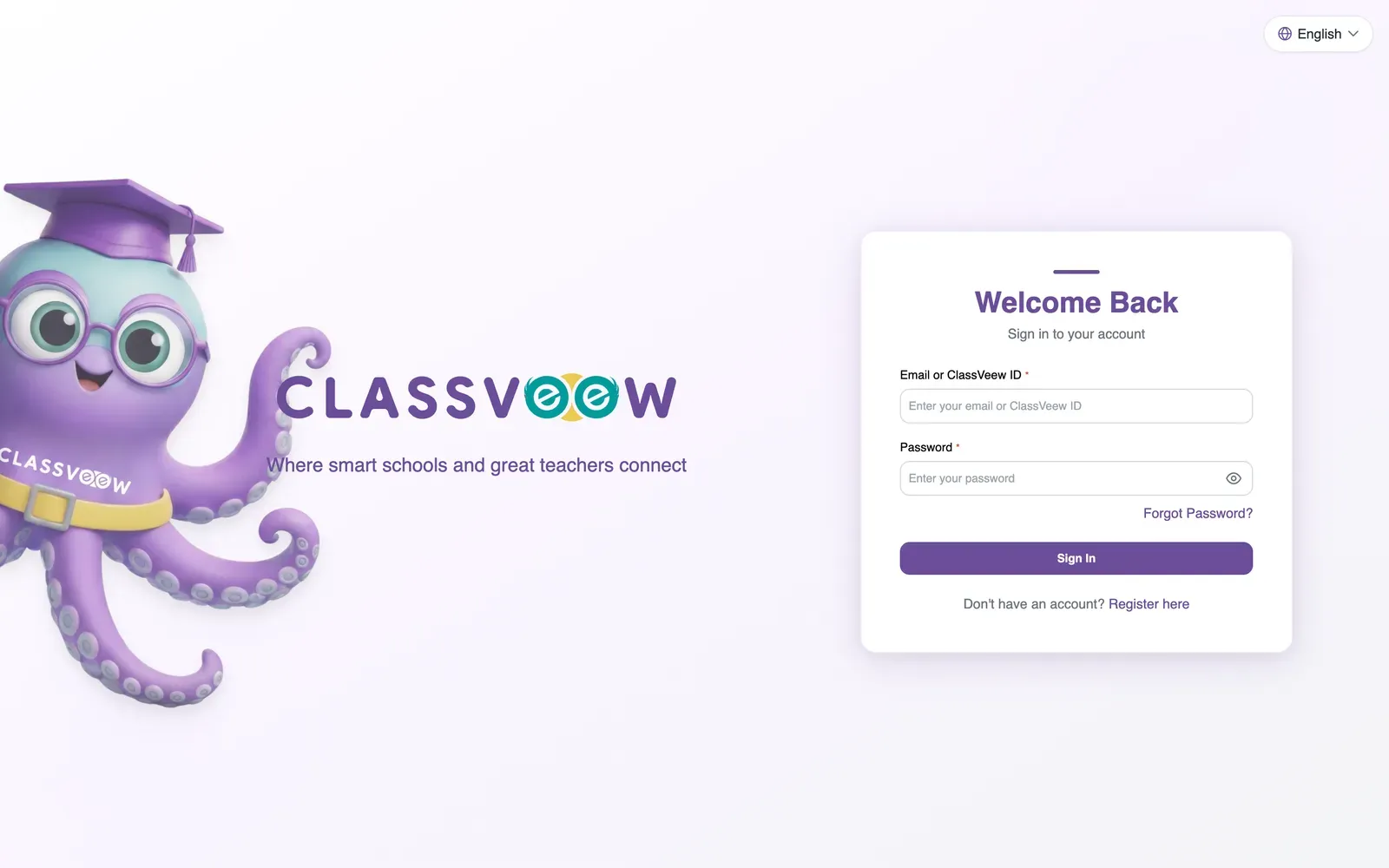
Sign in
- Go to app.classveew.com.
- Enter your email and password, then select Sign In.
- Forgot your password? Select Forgot Password? under the password box. See Reset your password.
Your dashboard
After you sign in, the Dashboard shows your school at a glance:
- Active teachers, staff and students, pending invoices and upcoming events.
- A student attendance chart for the dates you choose. Filter it by curriculum, grade or classroom.
- Recent activities from the news feed, with a Create Post button.
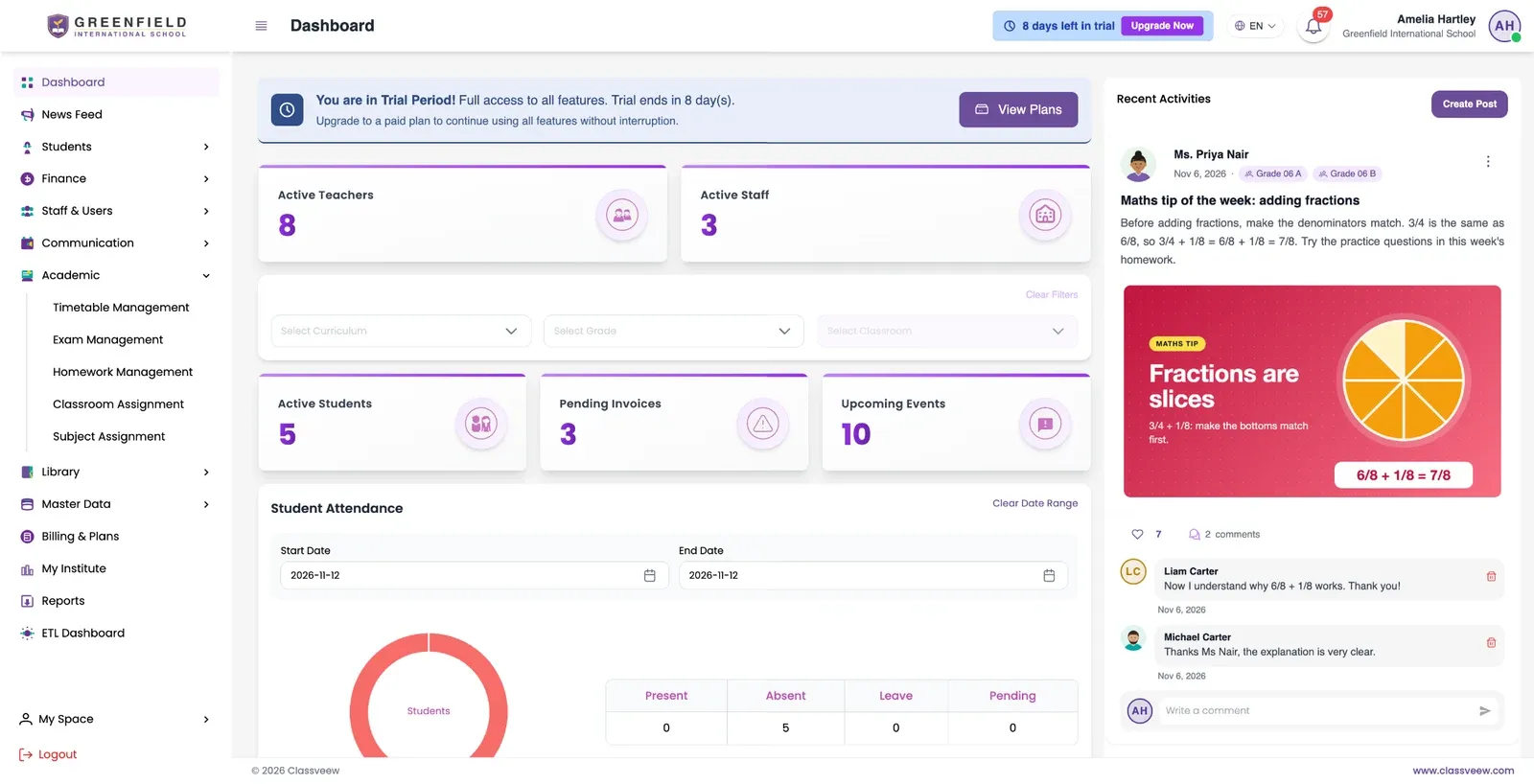
The menu
The menu on the left groups everything by job: Students, Finance, Staff & Users, Communication, Academic, Library, Master Data (curricula, grades, classrooms, subjects and more), Reports and My Institute. Your own profile and leave are under My Space.
Good to know: what you see in the menu depends on your role and your school’s plan.
Set up your school
Open ETL Dashboard to set up your school one step at a time: curricula, academic years and terms, operational hours, grades, classrooms and subjects. Each card shows whether it’s Required or Optional and whether it’s Completed, and most have Bulk Upload so you can add data from Excel.
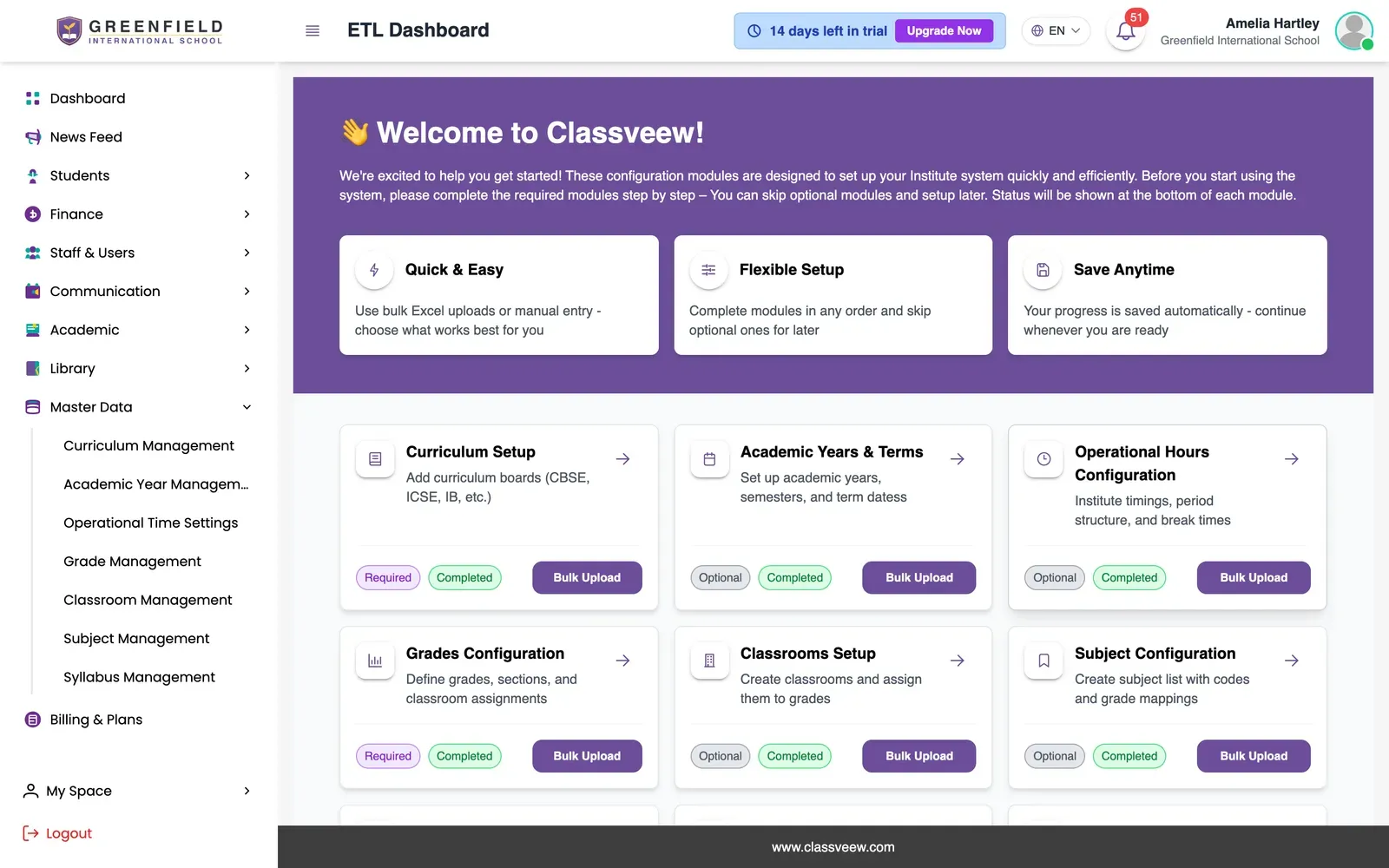
Your progress is saved as you go, so you can stop and come back later.